
Merge WebP to PNG Online
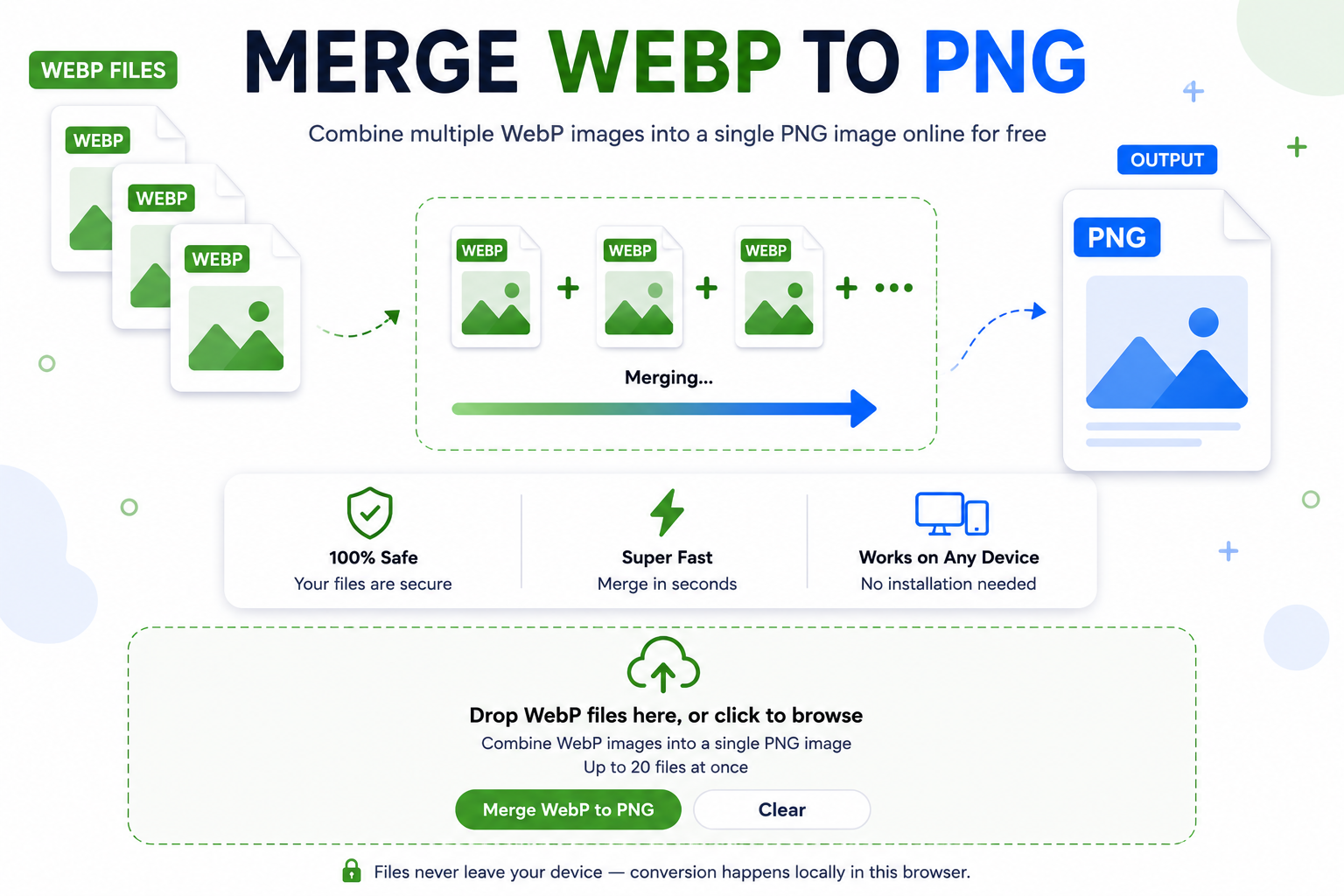
Combine multiple WebP photos into one continuous PNG graphic instantly. Everything runs directly inside your browser so your files stay totally secure.
Selected Images (0)
Why You Need to Merge WebP to PNG Files
WebP pictures keep web pages fast, but combining them into one piece can be difficult. When you merge WebP to PNG graphics into a single output file, you turn separate images into a single easy-to-share graphic. PNG supports clean transparent areas, so your stitched graphics look crisp on dark and light layouts alike.
If you need to compile various image documents into printable files, you can easily combine your finished graphics using our Merge PNG to PDF utility. Joining graphics beforehand keeps layout alignment perfectly intact.
Private & Local
Your photo assets never leave your computer. The merging process runs strictly in your web browser for total privacy protection.
Custom Stacking
Select vertical or horizontal alignment. Join multiple WebP files side-by-side or stacked top-to-bottom with a simple click.
Lossless Output
Get pixel-perfect output without losing crisp lines or alpha backgrounds. Your final PNG keeps original image sharpness throughout.
Practical Uses When Combining WebP Images
Creating infographics, comparing website designs, and making long social media posts often requires stitching individual photo files. Web images often save in WebP format, which many desktop design tools reject. If you also work with uncompressed print files, our tiff to jpg converter helps you handle large media files easily.
Sometimes you need to combine screenshots captured from websites. If you are extracting full web designs, using our html to jpg online tool helps you change raw site code into standard image files for easy viewing.
How to Use the WebP to PNG Converter
Upload Your WebP Files
Click anywhere inside the upload area or drop your WebP files directly into the box. Choose two or more files to join.
Choose Stacking Layout
Select whether you want to stack images vertically top-to-bottom or align them side-by-side horizontally before combining.
Merge and Save File
Click the Merge button to join your files. Once processed, preview your single image output and click Download to save it.
Organizing Your Image Files for Web and Desktop Use
Dealing with multiple graphics formats can get confusing quickly. Apple devices often capture images in heavy container formats, which you can standardise easily using our simple HEIC to JPG processing script. Converting files to clear web standards prevents upload errors across different operating systems.
When you merge WebP to PNG files, you gain continuous transparency across all stitched panels. However, if transparency is not needed and you want smaller file sizes, converting individual graphics to JPEG is often a better choice. You can convert web photos easily with our webp to jpg tool, or combine separate pictures using our primary JPG Merge tool. If those merged output files end up too big for email attachments, drop them into our JPG Size Reducer to compress total file size quickly.
Frequently Asked Questions
It reads all your uploaded WebP images inside your browser canvas, calculates total height and width, draws every picture in order, and exports one single merged PNG file.
No, your pictures remain on your local computer or phone. The stitching algorithm processes everything using client-side JavaScript, ensuring maximum speed and complete privacy.
You can upload as many files as your browser memory can manage. We recommend combining between 2 and 20 files at a time for best speed and smooth canvas rendering.
Yes. The tool outputs a clean PNG canvas that keeps alpha transparency around cutout areas and background layers.
Yes, images are joined in the exact order you select them. If you want a specific order, clear the list and select files in your preferred sequence.
Yes. The tool works inside mobile browsers on Android and iOS devices without requiring extra app downloads.
Final Thoughts on Combining Web Graphics
Combining web photos should be simple and fast. When you merge WebP to PNG images using this tool, you skip complex photo editing software entirely. You get clean, continuous PNG graphics ready for web presentation, printing, or archival storage instantly.