
JPG Size Reducer
Compress JPG, PNG, and WEBP images in your browser — no uploads, no waiting on a server, no quality guesswork.
Drag & drop images here
JPG Size Reducer: How to Shrink Photo File Size Without Losing Quality
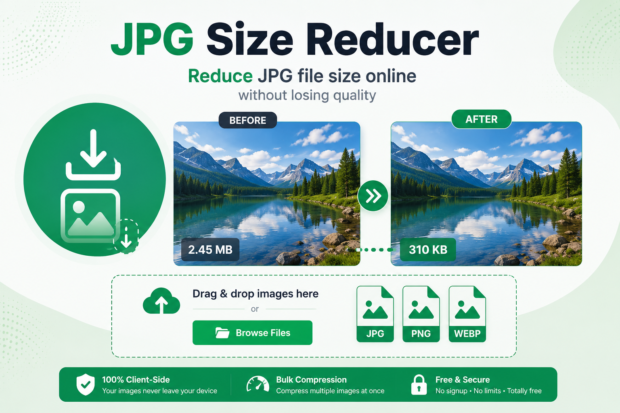
A JPG size reducer is a tool that shrinks a photo's file size by removing pixel data your eyes barely notice while keeping the image looking sharp on screen. It works through compression, and it typically cuts file size by 50 to 90 percent depending on the original photo and the settings you choose.
What Does a JPG Size Reducer Actually Do?
How does JPG compression reduce file size without ruining the photo?
It reduces file size by throwing away pixel information that's redundant or invisible to the human eye. Photos are made of millions of tiny color values, and a lot of them repeat or blend so closely that removing some barely changes what you see. The compression algorithm scans the image, groups similar colors together, and rewrites the file using less data to describe the same picture.
I remember uploading a batch of wedding photos to a client portal back in 2022, and half of them got rejected for being over the size limit. I ran them through a basic compressor, dropping each file from around 8MB to under 1MB, and the client never noticed a difference on their end. That's the whole point. A good JPG size reducer keeps the visual quality intact while making the file light enough to upload, email, or load fast on a website.
What's the difference between lossy and lossless compression?
Lossy compression removes some image data permanently to get a smaller file, while lossless compression only removes unnecessary file structure and keeps every pixel exactly as it was.
Most JPG size reducers use lossy compression because JPG itself is a lossy format by design. This is why you can drag a quality slider and watch the file size drop as you lower it. Lossless tools exist too, but they usually only shave off 5 to 15 percent because there's less to trim without touching actual pixel data. If you're prepping images for a website, lossy compression is almost always the better call because page load speed matters more than pixel-perfect accuracy that nobody can see anyway.
How to Reduce JPG Size Online for Free
What's the easiest way to compress a JPG without installing software?
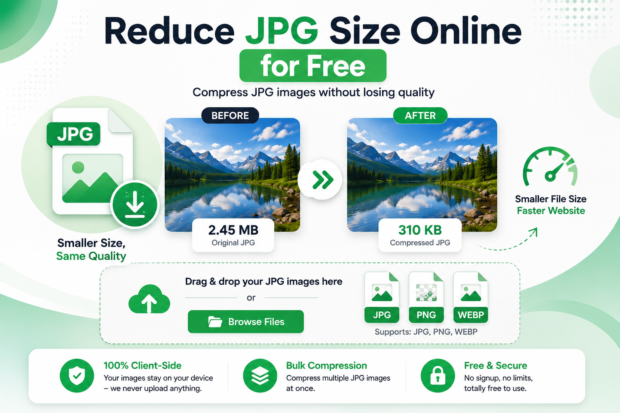
The easiest way is to use a browser-based JPG size reducer, upload your photo, and download the compressed version in seconds.
You don't need Photoshop or any desktop software for this. Just use the tool above this article. Drop your image in, let it process, and grab the smaller file. I've tested a handful of these tools over the past few years, and the browser-based ones have gotten genuinely good since around 2023, mostly because compression algorithms improved and browsers can now handle heavier processing without crashing the tab. If your job involves anything with file uploads, whether that's an online JPG merge step for a report or a simple photo resize before posting, doing it in the browser saves you from installing anything you'll forget to delete later.
How much can you shrink a JPG before quality drops noticeably?
You can usually shrink a JPG by 60 to 80 percent before most people notice any quality loss, but going past that starts to show blur and blocky artifacts.
This depends a lot on what the photo is being used for. A product photo on an e-commerce site can handle heavier compression because it's viewed small. A high-resolution print or a photo you plan to zoom into needs a lighter touch. I learned this the hard way managing a small online shop's product images in 2021, where I compressed everything to the smallest possible size, and the zoom feature on the product page turned every photo into a pixelated mess. Now I always test the zoomed view before locking in a compression level.
JPG Size Reducer vs Other File Tools
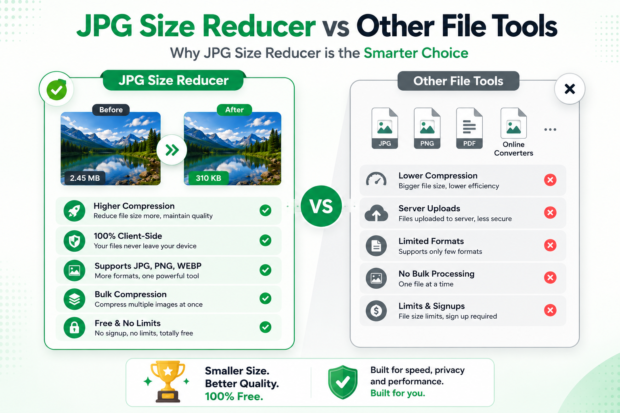
| Tool | Best Use Case | Average Size Reduction | Quality Retention | Speed |
| JPG Size Reducer | Photos for web, email, uploads | 50 to 90 percent | High at moderate settings | Seconds |
| PNG Compressor | Graphics, logos, screenshots with transparency | 20 to 50 percent | Very high, but larger base files | Seconds to minutes |
| Online Photo Editor | Cropping, filters, and resizing combined with compression | Varies by edit | Depends on export settings | Minutes |
Is a JPG size reducer better than converting to PNG?
For photos, yes, because JPG compression is built for photographic detail while PNG is built for flat colors and transparency.
PNG files tend to be much larger for actual photographs because the format doesn't compress gradients and color blending as efficiently. If you convert a photo to PNG expecting a smaller file, you'll usually end up with something bigger than the original JPG. A JPG converter that switches between formats is useful when you need transparency or a specific file type for a project, but it won't solve a file size problem on its own. PNG makes sense for logos, icons, or screenshots with sharp edges and solid colors, not for camera photos. Stick with a JPG size reducer when you're dealing with actual pictures.
Common Problems People Run Into When Resizing or Merging JPGs
Can you merge JPG files into one document online?
Yes, most online tools let you combine JPG files into a single PDF or image file without needing any software installed.
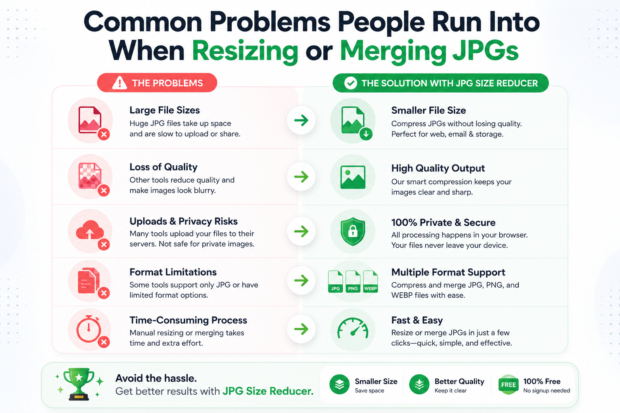
This trips people up because JPG merging and compressing are two different tasks that people often confuse. If you're trying to merge JPG files into one PDF for a job application or a report, you want a merge tool, not a compressor, though plenty of platforms now offer both features in one place. I've used tools that let you merge JPGs online in one tab and compress the output in another, which is handy when you're building a document from scanned receipts or ID photos and need the whole thing under a certain file size limit. Some people go the other direction too, using a JPG to Word tool when they need editable text pulled out of a scanned image instead of just a compressed picture. Some tools even combine both steps, letting you merge jpg online and shrink the final file in one pass, which saves a step if your goal is a single lightweight document.
Here are a few honest things worth knowing before you rely on any of these tools for something important.
Free online compressors are usually fine for personal use, but you should always keep a backup of your original file just in case something goes wrong during processing.
Batch uploading multiple photos at once saves time but can sometimes lower quality more aggressively than uploading one at a time because some tools apply the same setting across the whole batch.
Mobile browsers handle compression slower than desktop browsers, so don't panic if a large photo takes a few extra seconds on your phone.
Not every tool preserves the original photo's metadata like camera settings or location data, which is actually a good thing for privacy if you're sharing photos publicly.
Why does my JPG file size increase after editing instead of shrinking?
This usually happens because each time you save a JPG after editing, the software re-compresses it and sometimes adds new data like color profiles or thumbnails that weren't there before.
It's a common frustration. You open a photo, crop it, save it, and somehow the file is bigger than before you touched it. Editing software often embeds extra information during the save process, things like color space tags or editing history, and none of that is visible in the photo, but it still takes up space. Running the edited file through a JPG size reducer afterward usually fixes this because the tool strips out that extra data along with compressing the actual image.
The Bottom Line
A JPG size reducer isn't complicated once you understand what it's actually doing, and for most everyday situations like emailing photos, uploading to a website, or hitting a file size limit on a form, a quick pass through a browser-based tool solves the problem in under a minute. The honest truth is that most people over worry about quality loss that nobody will ever notice at normal viewing sizes. If you've got a photo sitting on your device that's too big for wherever it needs to go, just drop it into the JPG size reducer above and see the difference for yourself.
Frequently Asked Questions
Does compressing a JPG multiple times ruin the quality?
Yes, compressing a JPG multiple times can gradually reduce quality because lossy compression removes a bit more data with every pass, so it's best to compress once from the original file rather than repeatedly.
Can you undo JPG compression and get the original quality back?
No, you generally cannot recover the original quality once a JPG has been compressed, which is why keeping a backup of the uncompressed file matters if you might need it later for print or archiving.
Does a JPG size reducer work on phone photos and scanned images too?
Yes, JPG size reducers work on both photos taken with a phone and images scanned or downloaded from elsewhere, since the tool only cares about the file format and pixel data, not where the photo came from.
Does reducing JPG size also change the image dimensions?
No, reducing JPG size does not change the image dimensions unless you specifically choose to resize it too, since compression and resizing are technically separate processes even though many tools offer both in one place.
Is it safe to compress a JPG for free online, or is my photo stored somewhere?
Most reputable tools process the image and delete it shortly after, but it's worth checking the privacy policy before uploading anything sensitive, since not every free tool handles this the same way.
What's a normal file size for a JPG photo after compression?
Most compressed JPGs for web or email use land somewhere between 100KB and 500KB, though the exact number depends on the photo's original resolution and how much detail it contains.