
Turn Any HTML Page Into a JPG
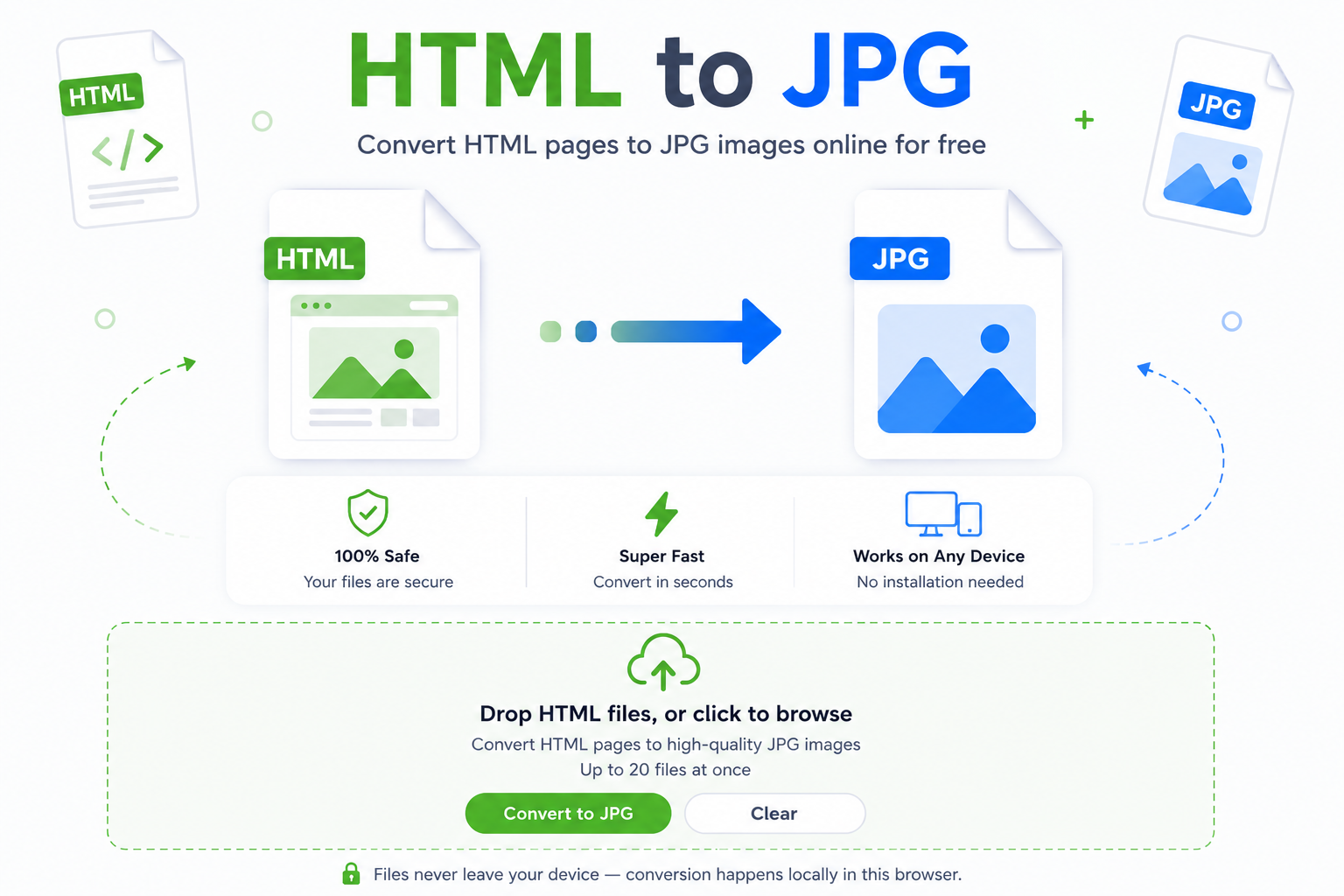
Runs entirely in your browserThis HTML to JPG converter takes an HTML file and turns it into a sharp JPG image, right in this browser tab. Drop your file below, press convert, and download the picture in a few seconds. Nothing gets sent to a server, so the file stays on your device the whole time.
Drop your HTML file here, or click to browse
Works with .html and .htm files · up to 10 files at once
🔒 Files never leave your device — conversion happens locally in this browser tab.
No server round-trip
Your HTML file is rendered and captured right on your own device, using your browser’s engine.
Keeps the layout intact
Fonts, colors, and spacing come out looking the way the page was built, not a rough screenshot.
Handles more than one file
Queue up a handful of HTML files and convert the whole batch in one pass.
Why HTML to JPG matters for everyday work
A lot of tools still don’t accept raw HTML. Email clients strip out styling, some CMS uploaders reject .html files outright, and clients often just want a picture they can glance at instead of a code file. Turning your markup into an image sidesteps all of that. It also matters when you’re archiving a page, since an HTML file depends on fonts, scripts, and linked assets that can go missing over time, while a JPG stays exactly as it looked the day you saved it. If you build layouts for print or social posts, a flat image version means you can drop it straight into a design file without worrying about how the HTML would render on someone else’s screen. Some people who use this tool later reach for JPG Merge to stack a few of these exported images into one file before sending them off.
When you’ll need this
Picture the moments this comes up. You built an HTML email template and want a static preview to send around before launch. A client asks for “just a screenshot” of a landing page draft. You’re saving an old invoice page before the system it lives on gets shut down. Or you’ve got a folder of local HTML reports and need flat images for a slide deck. Reaching for HTML to JPG in these moments means you skip the awkward routine of opening a browser, taking a screenshot, and cropping it by hand. If your source files started out as something else entirely, the pdf to jpg converter covers scanned documents and exported reports, and tiff to jpg handles the older format some scanners and design tools still produce.
Using the converter
Add your HTML file
Click the box above or drag a .html file straight from your folder.
Press Convert
Each file is processed one after another right in this tab, and you’ll see the status change as it finishes.
Download the JPG
Grab each image the moment it’s ready. If you’re starting from an iPhone photo instead of a webpage next time, HEIC to JPG is the one you want instead.
Common questions about HTML to JPG
Does this actually upload my HTML file anywhere?
No. The file is read and rendered by your browser’s own engine, and the image capture happens in a hidden frame on this page. Nothing is sent to a server, so you could disconnect your Wi-Fi after the page loads and it would still work.
Will external images and fonts show up in the JPG?
Usually, yes. Your browser loads them the normal way it would for any webpage, since the file is rendered inside your own tab. If an image or font is blocked by the site it’s hosted on, it may not appear, the same way it wouldn’t in a regular browser tab.
Can I convert a live webpage by pasting in a URL?
Not directly. Browsers block scripts on one site from reading the content of another site for privacy reasons, so this tool works from a saved .html file instead of a live address. Save the page first with your browser’s “Save As” option, then drop that file in here.
Why did my file come out looking cut off?
The capture uses the page’s own scroll height, so a very tall or unusually structured layout can sometimes get measured wrong. Try opening the file in a browser tab first to confirm it renders the way you expect, then convert it again.
Is there a limit on file size or how many I can convert?
There’s no hard cap built into the tool, but very large or image-heavy pages depend on your device’s memory since everything happens locally instead of on a server.
The JPG came out larger than I expected. What now?
Run it through JPG Size Reducer afterward to bring the file size down without losing much visible quality. And if you’re juggling other image formats too, avif to jpg is handy for the newer format some sites now save by default.
Do I need to install anything?
No installs, no browser extensions, no account. Just this page and an HTML file.
HTML to JPG conversion doesn’t need to be complicated. Drop a file in, press convert, and you’ve got an image you can send, print, or store without touching a single line of code.