
Open your iPhone photos
on any device
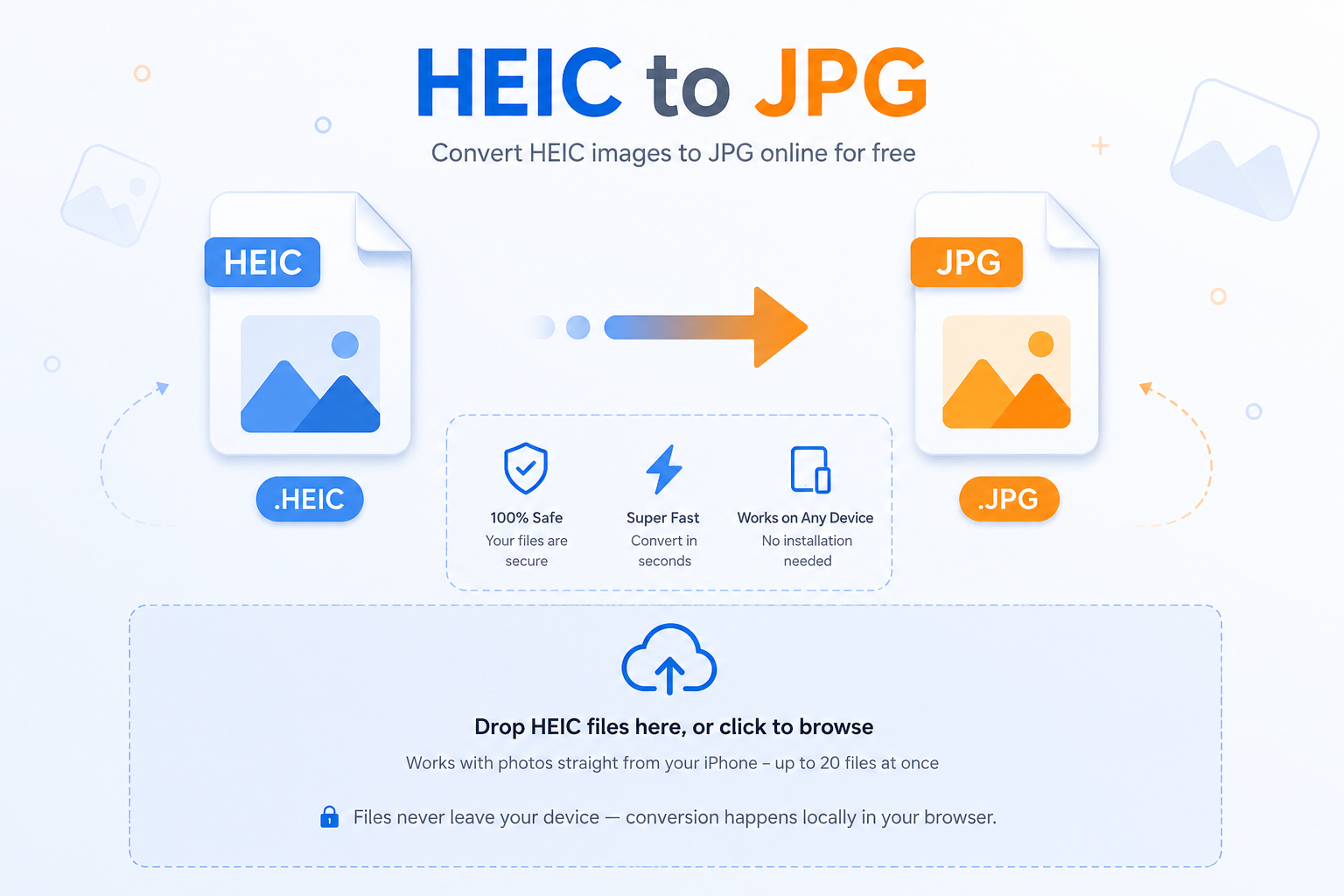
HEIC files only fully open on Apple devices. Drop yours below and get a JPG that works everywhere — no upload, no waiting, no account. Bookmark this HEIC to JPG converter for next time.
No server round-trip
Your photos are decoded and re-encoded on your own device using your browser’s engine.
Keeps its sharpness
Output is encoded at high quality, so screens and prints still look the way you shot them.
Handles a whole batch
Select an entire camera roll export at once instead of converting one photo at a time.
Why HEIC photos won’t open everywhere
Since iOS 11, iPhones save photos as HEIC by default — a format built around the HEIF container, which packs images tighter than JPG without giving up visual detail. That’s great for storage space on your phone. It’s less great the moment you email that photo to someone on Windows, drag it into an older design tool, or upload it to a site that simply doesn’t recognize the file.
Converting to JPG doesn’t downgrade the photo in any meaningful way for everyday use — it just swaps the container so the image opens on literally anything: Windows Photo Viewer, older Android phones, ancient CMS uploaders, you name it.
HEIC to JPG: What makes the two formats different
HEIC stores images using a more modern compression method than JPG, which lets it hold roughly the same visual quality in about half the file size. Apple switched to it as the default photo format starting with iOS 11, mainly to save storage on phones and in iCloud. The format also supports extra features JPG doesn’t, like storing Live Photo motion data and image depth information from portrait mode shots.
The tradeoff is compatibility. JPG has been the universal image standard since the early 1990s, so it’s supported everywhere — every browser, every image editor, every printing service, every CMS. HEIC support is still inconsistent outside the Apple ecosystem, which is the whole reason a converter like this one exists. If you ever need to go the other way, or convert into a different format like PNG or WebP, the JPG Converter handles that.
When you’ll need a HEIC to JPG conversion
A few situations come up constantly: attaching an iPhone photo to a resume or application that only accepts JPG/PNG, uploading product photos to an online store, sending images to a print shop, or sharing a photo with someone on an older Android phone or Windows PC that shows the file as a blank icon. In each case, the fix is the same — convert to JPG once, and the file works everywhere from then on. If you’re converting several photos to send as one document, JPG Merge can combine them into a single file afterward.
Using the converter
Add your HEIC photos
Click the box above or drag files straight from your Photos export folder.
Press Convert
Each file is processed one after another right in this tab — you’ll see a status change as it finishes.
Download the JPGs
Grab each file individually the moment it’s ready. If the file still feels too large to email or upload, run it through JPG Size Reducer next.